
How to Use ToonWorld Studio
Updated 29 November 2026
Everything in ToonWorld Studio, with the exact names of the buttons, so you can find any place, character, action or setting quickly. The pictures show the Windows app; the studio screens are the same on Android.
Download ToonWorld Studio for Windows
What you see first
ToonWorld Studio is a cartoon maker. You pick a place, add characters, make them act and talk, and save a video. You do not need an account.
ToonWorld Studio is for Windows now. The Android app is in Google Play closed testing and is coming soon.
Terms
When you open the app for the first time, you see the Terms and Conditions.
- Tap I agree to open the app.
- Tap Exit to close the app.
Home
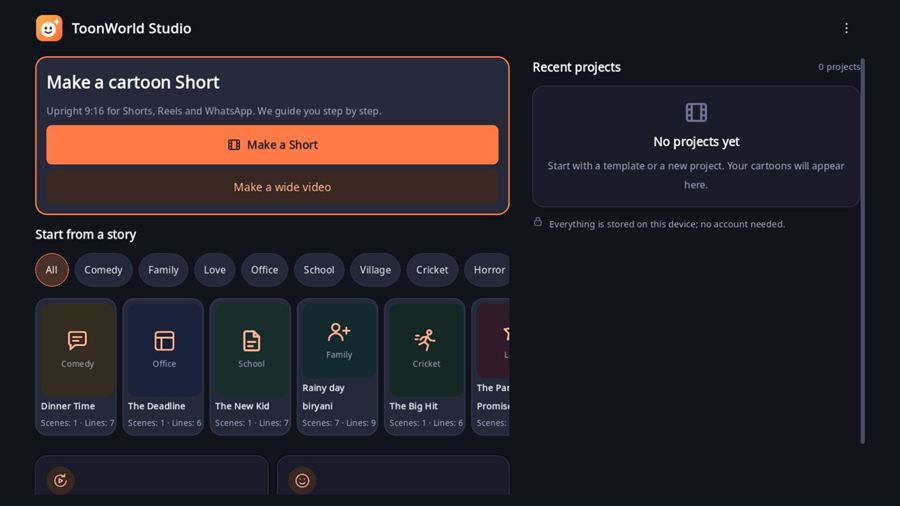
- Make a cartoon Short: an upright 9:16 video for Shorts, Reels and WhatsApp. The orange button Make a Short makes a tall video. The button Make a wide video makes a wide 16:9 video.
- Start from a story: story cards in groups such as Comedy, Family, Office, School and Village. Slide the row to see more.
- Recent projects: your films. At first it says No projects yet.
- The three-dot menu (top right): New film..., Story starters..., Templates..., Open file..., Library, Settings, Light mode, What's new and more.
Make your first cartoon in 5 minutes
- On Home, tap Make a Short. A new tall film opens.
- Look at the bar at the bottom: Place, Cast, Act, Voice, Text, Undo, Export, More.
- Tap Place. The Places window opens.
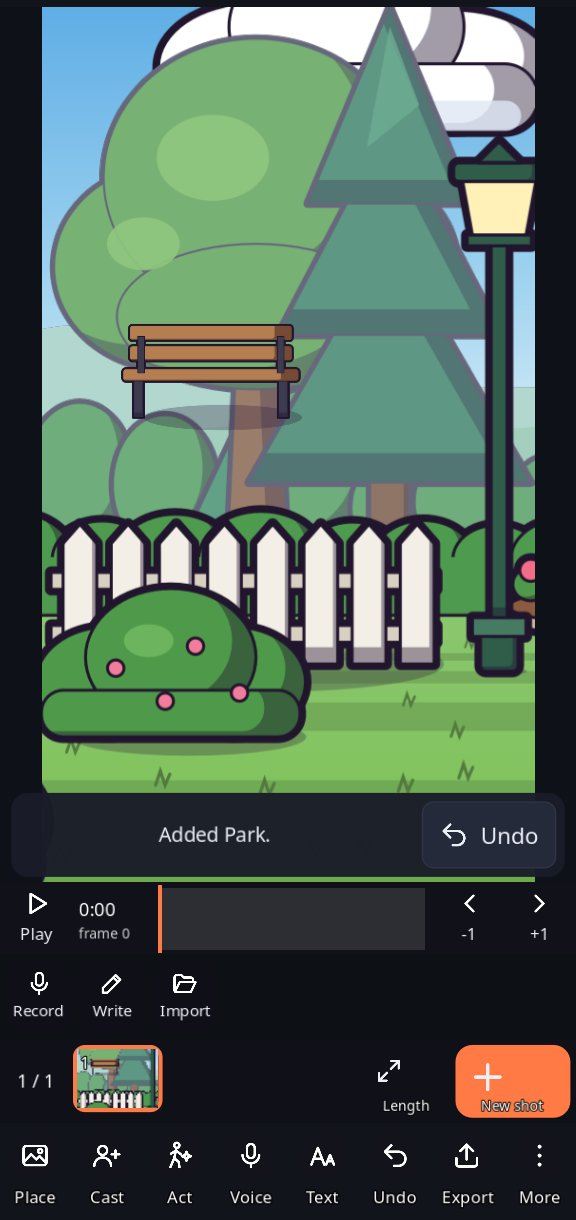
- Type park in Search places. Tap Park. The place changes at once. A message says Added Park. with an Undo button. Tap Back if the window is still open.
- Tap Cast. Tap Jolly grandpa. He appears on the stage.
- Tap Cast again. Scroll a little and tap Grandmother Ama. Now you have two people.
- Tap one character. It gets an orange frame. Tap Act. The sheet says Actions for and the name.
- Tap Walk. Tap Act again and tap Wave.
- Tap Text. The Titles tab is open. Type your title (for example Hello Park) and tap Set title box.
- Tap Export. Leave the shape and size as they are. Tap Export video.
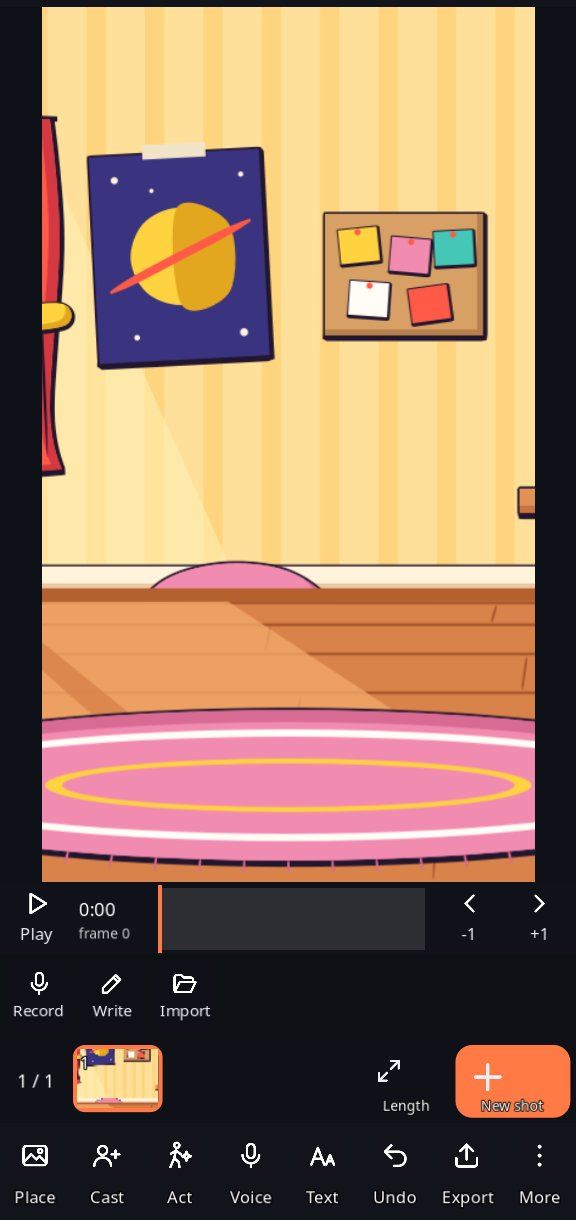
Tip: if you tap Act before you add a character, the app says Add a character first. Go to Cast first.
The workflow
- Home: tap Make a Short (tall) or Make a wide video (wide).
- Make a Short: the stage opens with an empty film.
- Place: choose the background.
- Cast: add people, stickmen or animals.
- Act: tap a character, then tap an action.
- Camera and shots: More > Camera for close-ups; New shot for the next shot.
- Voice and text: Voice for spoken lines, Text for titles, captions and sound.
- Export: tap Export video to save your cartoon.
Made a mistake? Tap Undo on the bottom bar at any time.
A to Z reference
Act (actions)
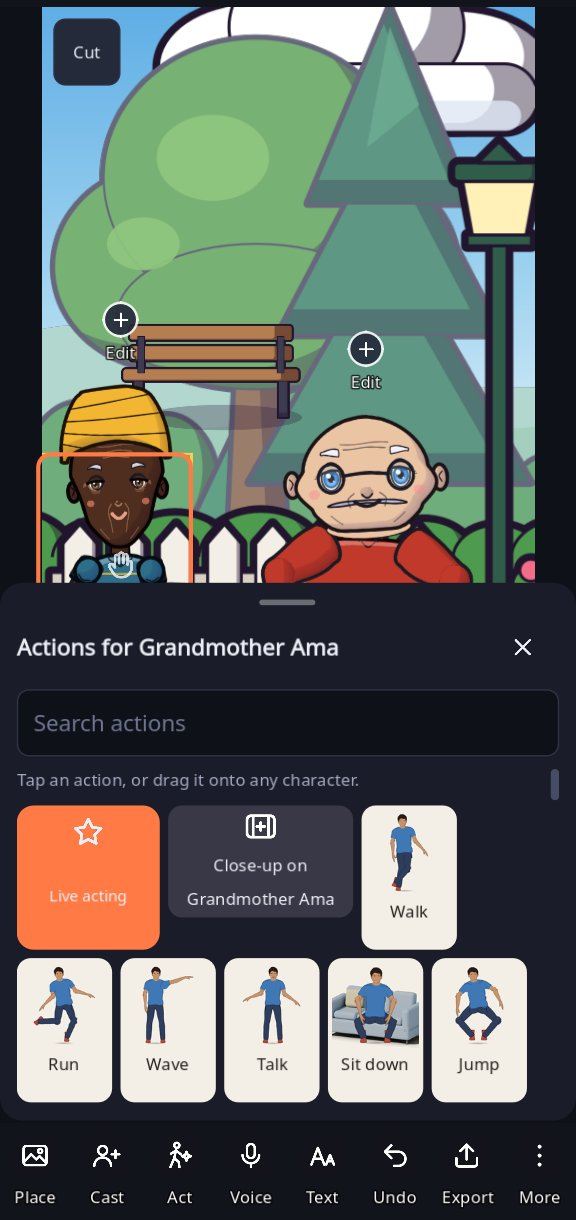
- Where: tap a character, then Act on the bottom bar.
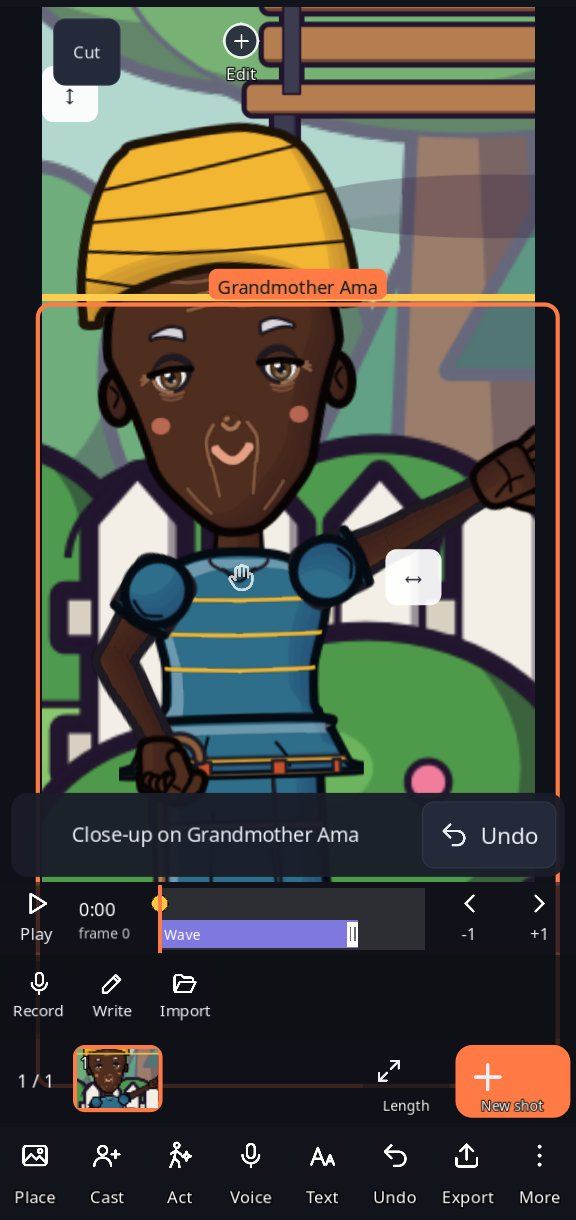
- What's inside: the search box Search actions. Top tiles: Live acting, Close-up on (name), Walk, Run, Wave, Talk, Sit down, Jump, Dance. Groups: Everyday, Do, Body, Emotions, Dance, Comedy, Action, Sports, Together, Face, Edit. Over 300 actions in all. Tap an action, or drag it onto any character.
- Face: Smile, Happy, Sad, Angry, Surprised, Thinking, Scared and more.
- Search words: walk, run, wave, sit, dance, hug, cry, laugh, phone.
Animals
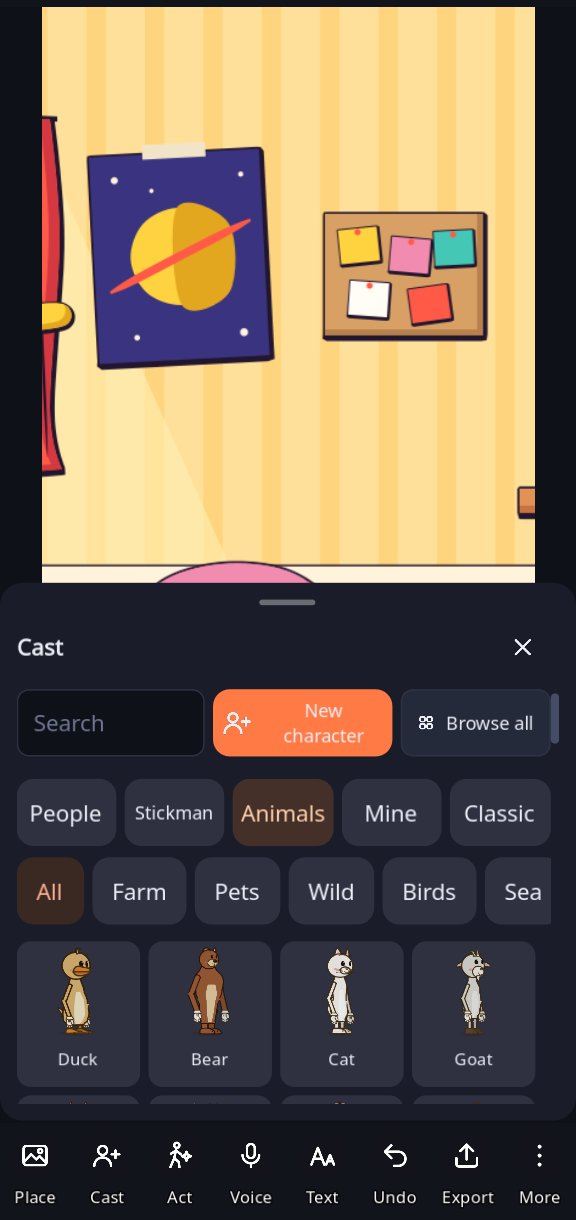
- Where: Cast > Animals.
- What's inside: about 90 animals. Groups: All, Farm, Pets, Wild, Birds, Sea. For example Duck, Bear, Cat, Goat, Cow, Dog, Horse, Lion, Elephant, Penguin.
- Search words: cow, dog, cat, lion, horse.
Camera
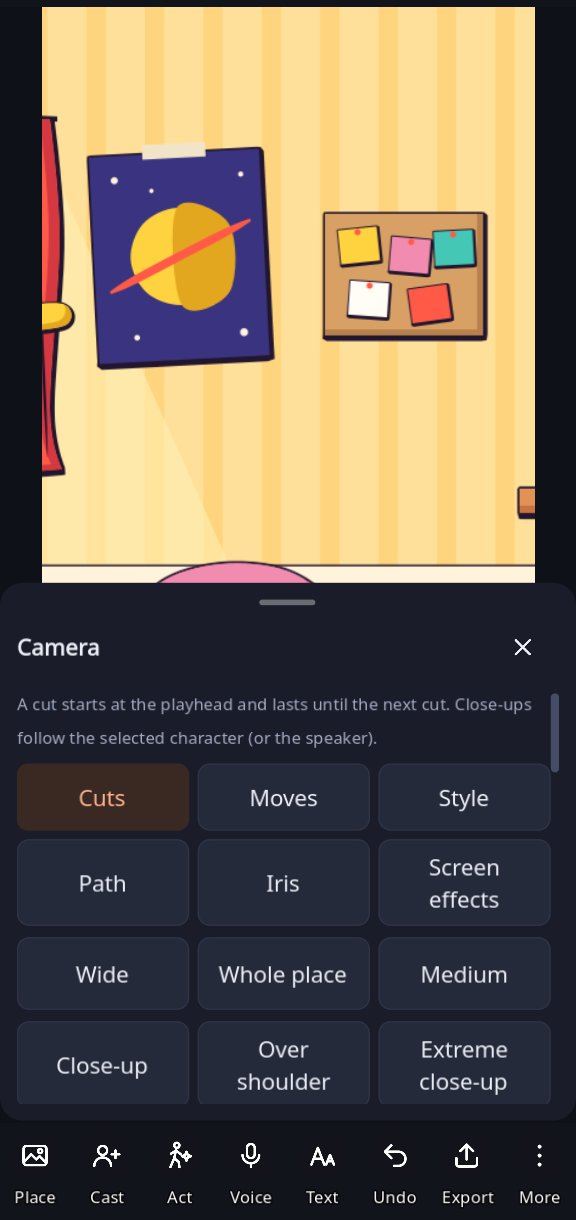
- Where: More > Camera. For a quick close-up: Act > Close-up on (name).
- What's inside: tabs Cuts, Moves, Style, Path, Iris, Screen effects. Cuts: Wide, Whole place, Medium, Close-up, Over shoulder, Extreme close-up and more. A cut starts at the playhead and lasts until the next cut.
- Search words: none (no search box here).
Cast (characters)
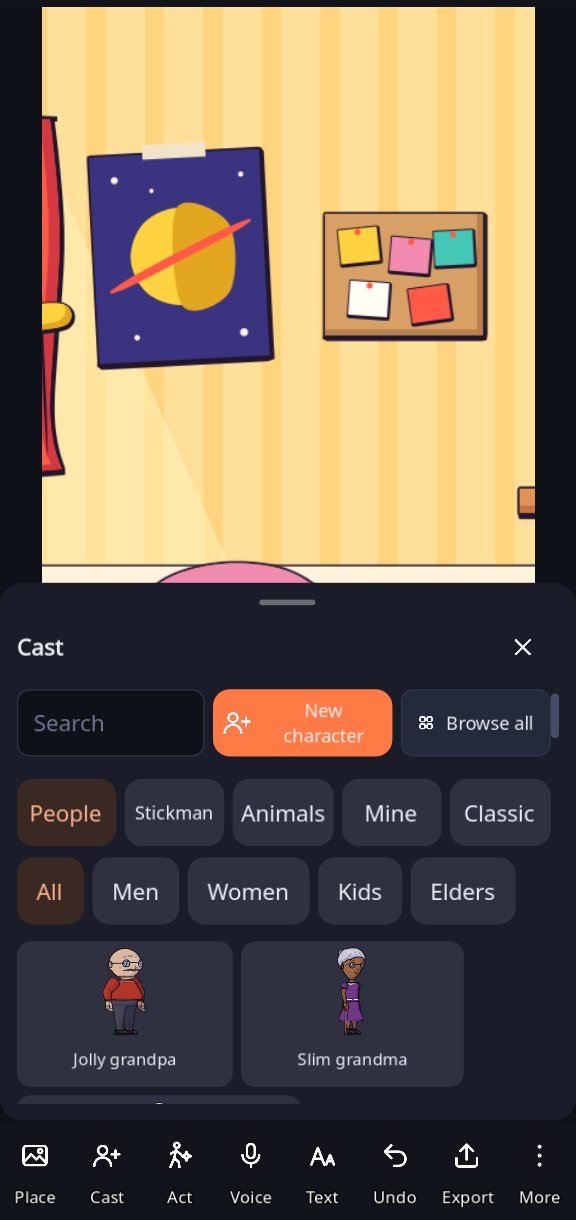
- Where: Cast on the bottom bar.
- What's inside: a Search box, the orange New character button and Browse all. Tabs: People (about 50), Stickman (over 80), Animals (about 90) and Mine (your own characters). People groups: All, Men, Women, Kids, Elders. Tap a picture and the character joins the shot.
- Search words: grandpa, grandma, teacher, police, chef, kid.
Effects
- Where: More > Add effect.
- What's inside: tabs Effects and Look, the search box Search effects and groups Hits, Motion, Feelings, Magic, Fire & water, Weather & power, Camera, Stickman Ink. For example Impact star and POW burst.
- Search words: star, pow, fire, smoke, rain, magic.
Export (save the video)
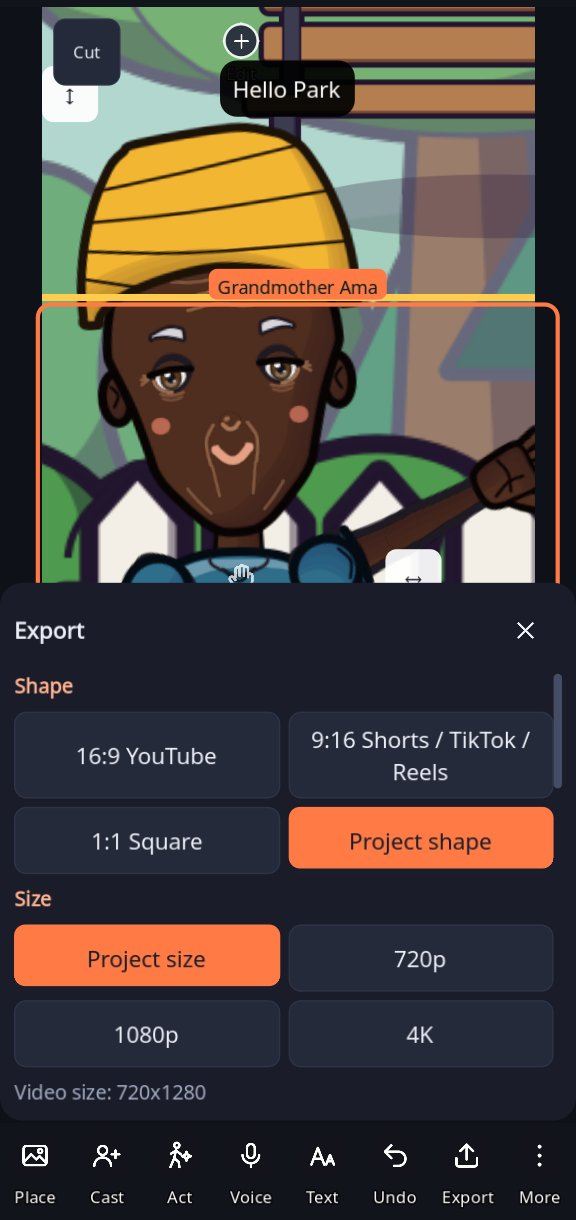
- Where: Export on the bottom bar.
- What's inside: Shape: 16:9 YouTube, 9:16 Shorts / TikTok / Reels, 1:1 Square, Project shape. Size: for example 720p and 1080p. The big button Export video, and Formats and subtitles.
- Search words: none.
Length and scenes
- Where: More > Scenes and length, or the Length button under the stage.
- What's inside: New empty scene, Copy this scene, Fit to voice and actions, 1 s shorter, 1 s longer, +5 s.
- Search words: none.
More menu
- Where: More (three dots) on the bottom bar.
- What's inside: Home, Text & Sound, Weather and time, Camera, Props, Music, Save, Add effect, Who is in this shot, Play: whole film, Scenes and length and more.
- Search words: none.
Music
- Where: More > Music, or Text > Sound > Add music.
- What's inside: Add music and Preview. Moods: Exciting, Sneaky, Triumphant, Sad, Scary, Funny, Adventure, Romantic, Magic.
- Search words: none (choose a mood).
Place (backgrounds)
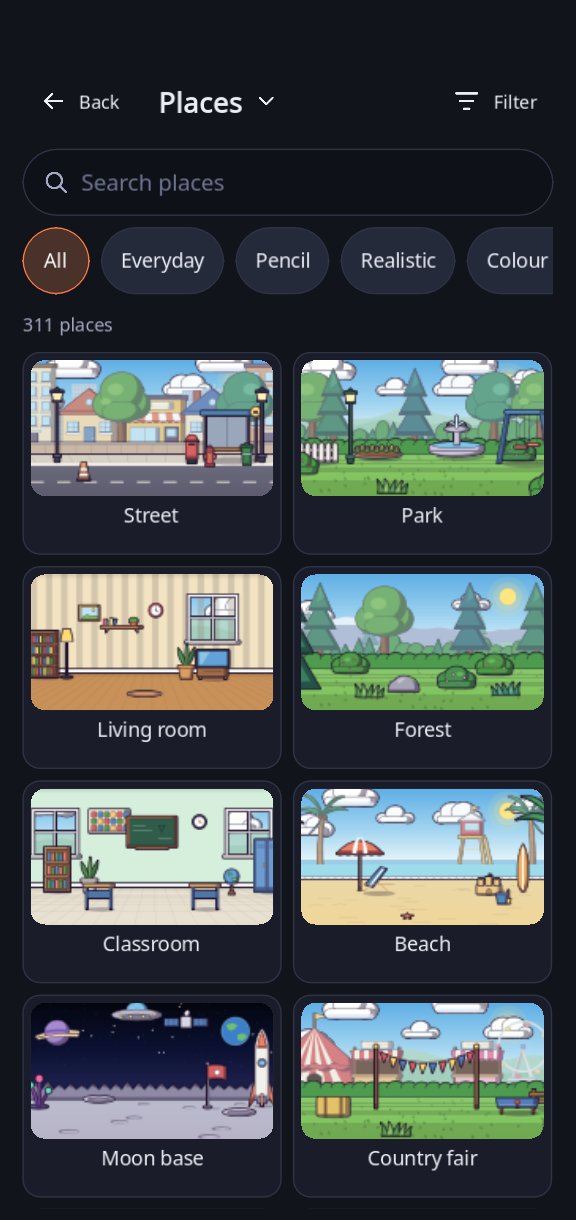
- Where: Place on the bottom bar. The Places window opens. Leave with Back.
- What's inside: over 300 places. Groups: Everyday, Pencil, Realistic, Colour pencil, Pencil sketch, Classic 1930s, Painted, Faith, Chinese culture, Festivals, World places, Packs. For example Street, Park, Living room, Forest, Classroom, Beach, Moon base, Japanese street, Arabian market.
- Tap a picture and the place changes at once. Wrong place? Tap Undo on the message.
- Search words: park, beach, kitchen, classroom, office, village, night, sketch.
Props (things)
- Where: More > Props. The window Add an item opens.
- What's inside: over 350 items in groups: Vehicles, Buildings & houses, Roads & rails, Nature, Furniture & home, Food & fruit, Decor & small things. The search box is Search all items.
- Search words: car, bed, door, tree, table, phone.
Settings
- Where: Home > three-dot menu > Settings.
- What's inside: General has Language and Text and button size (Small, Normal, Large).
- Search words: none.
Shots
- Where: the shot strip under the stage: Length and the orange New shot button.
- What's inside: New shot gives Same place, Other place... and Copy shot. The new shot comes after this shot. Characters keep their place, size and pose. More > Who is in this shot shows the characters in the shot.
- Search words: none.
Stage (the main screen)
- Where: it opens after Make a Short or Make a wide video.
- What's inside: the bottom bar Place, Cast, Act, Voice, Text, Undo, Export, More; the row Record, Write, Import; the shot strip; Play and the time.
- Search words: none.
Text, titles and captions
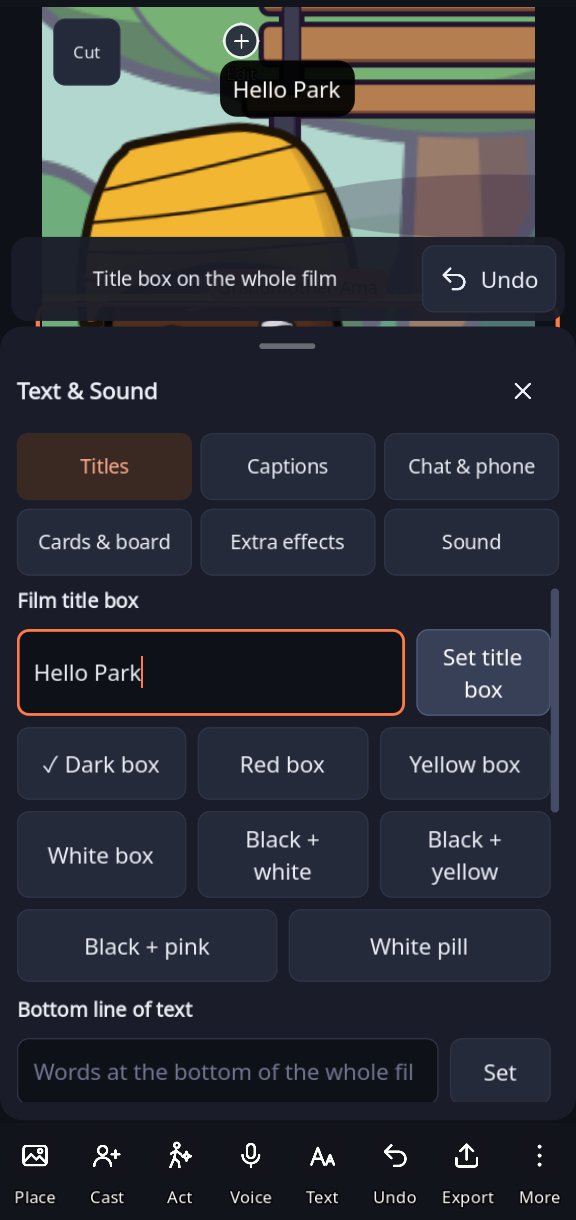
- Where: Text on the bottom bar. The sheet is called Text & Sound.
- What's inside: tabs Titles, Captions, Chat & phone, Cards & board, Extra effects, Sound. Titles: type a title and tap Set title box; box styles such as Dark box, Red box, Yellow box, White pill. Captions: Word by word, Line by line, No captions. Cards & board: The next day, That night, Meanwhile..., Years later, Your own words... and more. Extra effects: Fade in, Fade out, Cinema bars and more.
- Search words: none (no search box here).
Together (two characters)
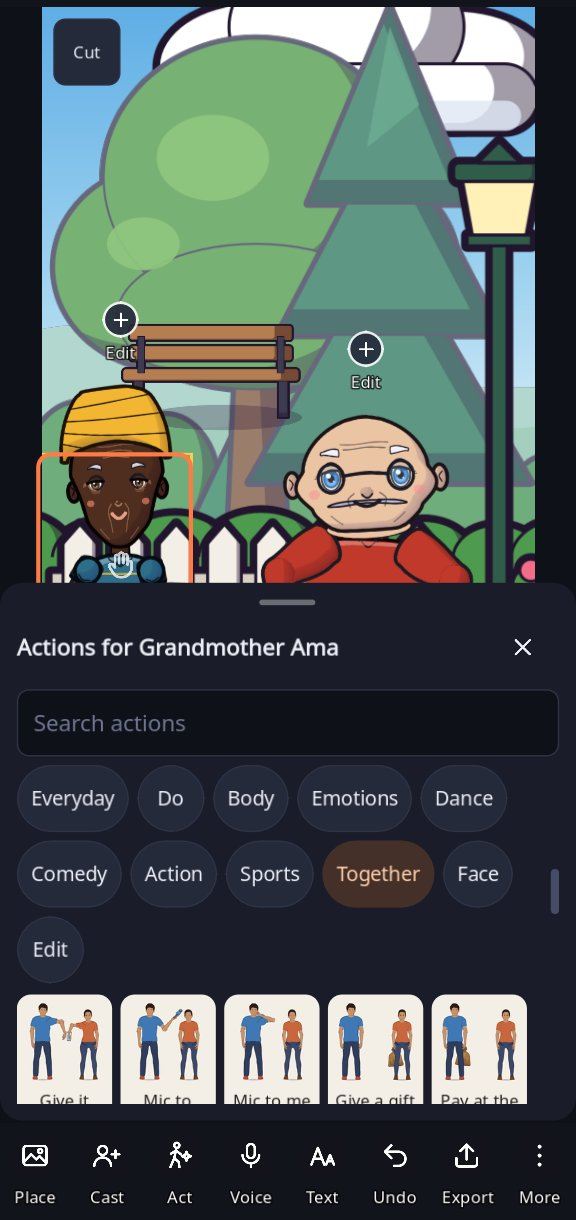
- Where: add two characters, tap one, then Act > Together.
- What's inside: Handshake, High five, Fist bump, Big hug, Pat on the back, Help up, Whisper a secret, Dance together, Tug of war, Selfie together, Give a gift and more.
- Search words: hug, handshake, high five, selfie, gift.
Undo
- Where: Undo on the bottom bar, or Undo on the message after a change.
- What's inside: it takes back your last change. If there is nothing to take back, the app says Nothing to undo.
- Search words: none.
Voice
- Where: tap the character who speaks, then Voice on the bottom bar.
- What's inside: type a line in What does your hero say? and tap Speak. Also Record, Import audio..., Lip sync: follow voice, Bubble on or off, Remove voice here and More voice options. The line starts at the playhead.
- Search words: none.
Weather and time of day
- Where: More > Weather and time.
- What's inside: Sunny day, Rainy night, Storm, Sunset, Snowy day, Clear night; weather Clear, Rain, Snow; Time of day.
- Search words: none.
Tips and FAQ
Where is my video saved?
- Android: Gallery > Movies > ToonWorldStudio.
- Windows: in your Videos folder, or in the folder you choose.
How do I undo a mistake?
Tap Undo on the bottom bar. You can also tap Undo on the message that shows after a change.
How do I change the language?
Go to Home > three-dot menu > Settings > General > Language. The word Language is always shown in English too, so you can find it in any language. Auto (system language) follows the language of your device.
The words are too small.
Go to Settings > General > Text and button size and choose Large.
I tapped Act and nothing happened.
You need a character first. Tap Cast and add one.
My video has no sound.
Add a spoken line with Voice (type a line and tap Speak), or add music with More > Music.
Do I need an account?
No. Everything is stored on your device.
More tips
- Work in this order: Place, Cast, Act, Voice, Text, Export.
- Use the search boxes in Place, Cast, Act, Effects and Props. Typing is faster than scrolling.
- Tap a character first, then Act or Voice. The orange frame shows who is chosen.
- Drag an action tile onto a character to give it that action.
Android and Windows: what is different
- Availability: Windows is available now. Android is in Google Play closed testing and is coming soon.
- Home: Windows shows a wide desktop layout, so Home looks different on a phone.
- Studio: the studio screens and the bottom bar are the same.
- Cast: Windows has one more cast tab, Classic, with extra characters. Android does not have this tab.
- Where the video goes: Android saves to Gallery > Movies > ToonWorldStudio. Windows saves to your Videos folder, or the folder you choose.
More help: the FAQ, or write to toonworldstudio.help@gmail.com.